Quickstart - Producer / Org Owner
You created the Grace organization (or were named the owner). You are the single billable identity for the org, and every access decision on every production ultimately answers to you. There's exactly one owner per org and ownership can't be transferred.
Grace is in a free, card-less, US-only beta right now. Every feature is included, there's no credit card on file, and there are no charges. There's nothing to set up in Billing.
One thing that surprises new owners: being the owner does not automatically give you write access inside a production. An owner who hasn't joined a production yet is read-only there - you can see everything, but not edit. To actually work in a production (upload a script, edit a budget, approve a call sheet) you self-join it as Producer. More on that in Day one.
Grace also teaches itself in-product. The first time you open each page, a short spotlight tour walks you through it. You can replay any tour later from the gear (Organization) menu -> Show guide.
Day one
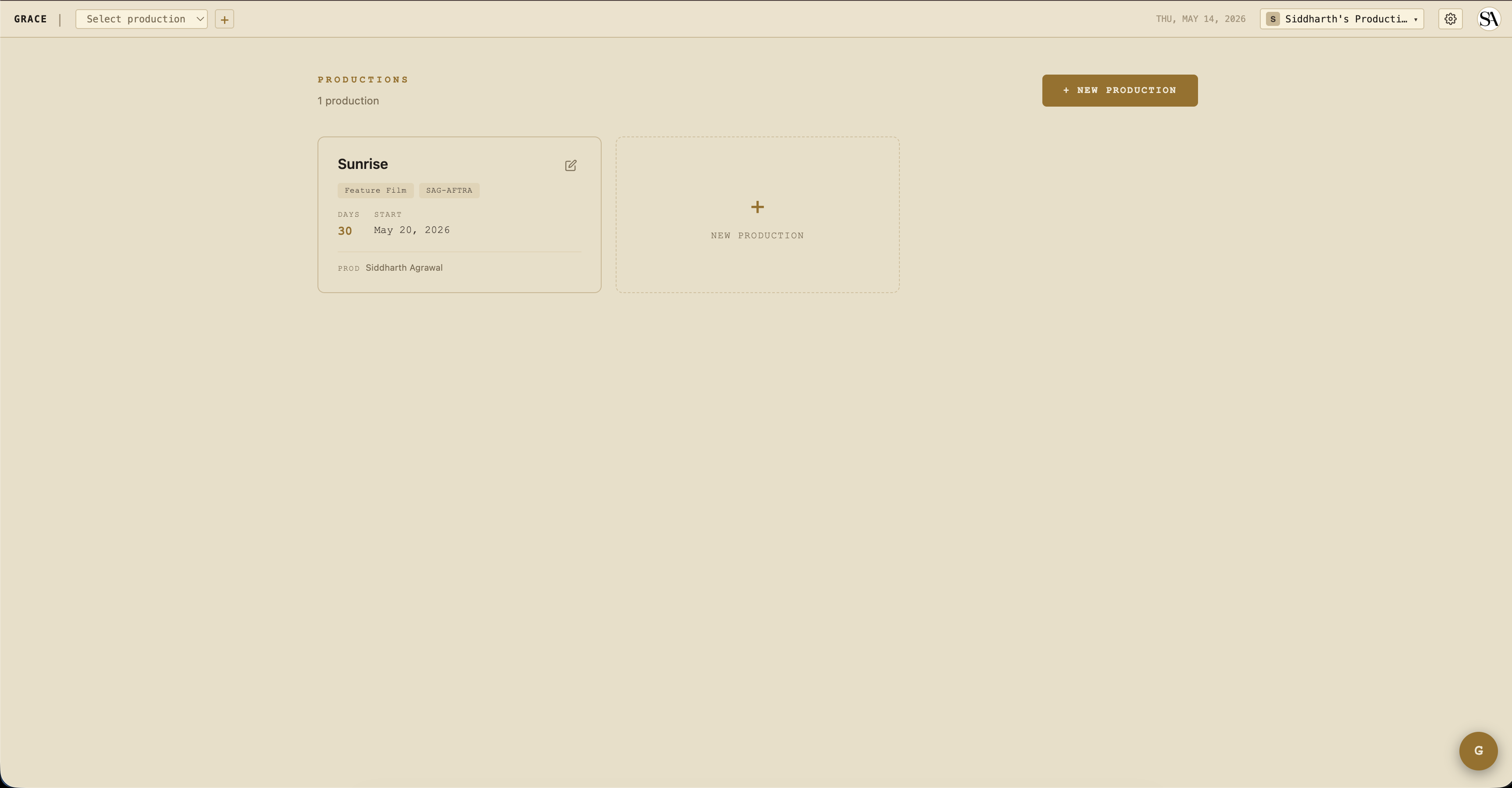
- Create your first production. From the dashboard home, click + New production. Pick a working title, shoot days, and start date. Skip the rest for now - you can fill it in later. See Production setup.
- Join the production as Producer. Open the production you just created. Because you don't hold a seat on it yet, Grace shows a gold banner across the top telling you you're read-only. Click Join as Producer on that banner to unlock full write access. Until you do, you can browse but not edit.
- Invite your team. Settings → Access → Invite. Producers, ADs, department heads first - they're the ones who'll do the day-to-day work. See Access control for what each role can do.
What you do day-to-day
You're not in Grace every day during a shoot. The AD and UPM are. Your daily check-ins are likely:
- Production dashboard - open
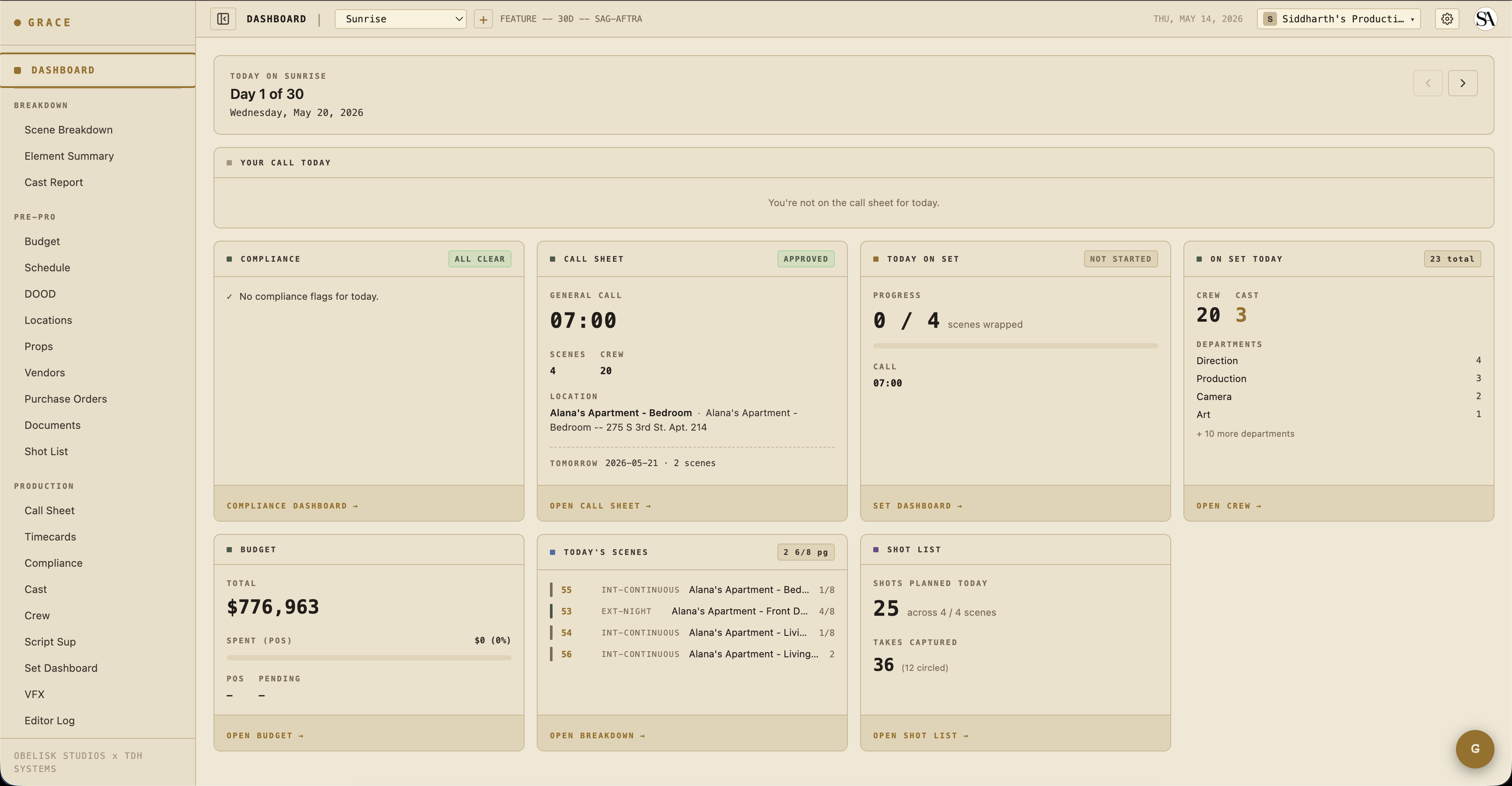
/dashboard/productionfor whichever show is active. The at-a-glance cards (compliance, call sheet status, budget snapshot, crew/cast on set, today's scenes, shot list progress) tell you the state of the production in 30 seconds. See Dashboard cards for the owner view. - Budget snapshot - total committed vs spent vs pending. The card on the dashboard surfaces a percent bar; for line-item depth, drill into Budget → Budget.
- Compliance flags - red alerts on the dashboard mean something needs your attention or the AD's (turnaround violation, minor hours, unapproved call sheet).
Things only you can do
- Edit the production company name on the production record - that's the billable identity, owner-only.
- Archive or delete a production - both are owner-only. Archiving is a soft, reversible read-only freeze; deleting is permanent. Members can do neither.
- Manage billing - billing is disabled during the free beta, so Settings → Billing just confirms you're on the free plan (no plan picker, no payment method, no seat usage). When paid plans return, plan changes, add-ons, seat packs, cancellation, and payment method will all be owner-only.
- Delete the org - Settings → Org → Danger Zone. Soft-delete with a typed confirmation. If the org ever carries a paid subscription, deletion cancels it at period-end automatically.
When something goes wrong
- Crew member says they can't see X: check Settings → Access - their role tier + any overrides. Likely a T2/T3 narrowing that needs a one-key override grant.
- Budget shows over 100%: drill into Budget → look at the highest-actual line items. POs roll up by account automatically.
- Production looks archived when it shouldn't be: there's no automatic locking during the free beta, so an archived production was archived manually (owner-only). Unarchive it from the production record.
Next reads
- Production setup - full setup walkthrough.
- Access control & role tiers - who sees what.
- Billing & seats - plans, add-ons, and seat pools (paused during the free beta).