Production setup
This is what you do once, at the start of a new production: spin up the Grace organization, create the production record, invite the team. If you've inherited a production that's already in Grace, you can probably skip this entire page - just confirm at Settings → Access that you're on the roster.
Grace teaches itself in-product. The first time you land on any page, a short spotlight walkthrough auto-launches and points out the key controls. You can replay any tour later from the gear menu's "Show guide". This written guide is a companion to those in-app tours, not a replacement.
1. Create the organization
Skip this if your producer already created one for the company.
When you sign up for Grace at us.graceproductionos.com, the onboarding flow at /welcome walks you through the first-run steps in order:
- Accept Terms + Privacy - before you enter any data, Grace asks you to accept the Terms of Service and Privacy Policy. This same gate re-fires later if those documents are ever updated.
- Profile - your first name + last name (Clerk's headless sign-up doesn't collect names; Grace asks here).
- Org - name your production company / studio. Grace derives an internal slug from the name automatically, so there's nothing extra to enter; the company name is what shows on call sheets.
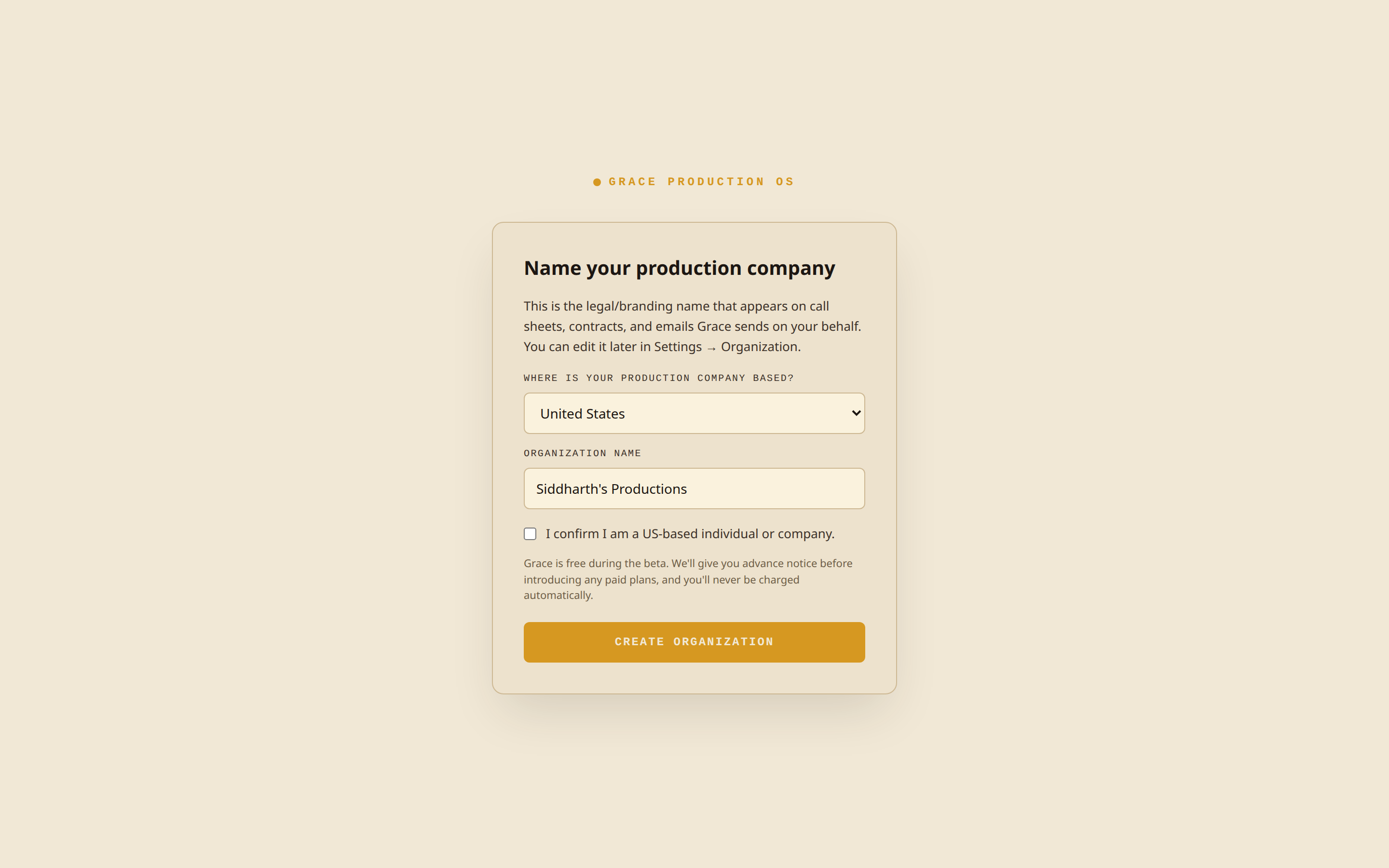
Free open beta (US-only). Grace is in a free, open beta. The org step asks for your company name plus a checkbox: "I confirm I am a US-based individual or company." The disclosure below it reads: "Grace is free during the beta. We'll give you advance notice before introducing any paid plans, and you'll never be charged automatically." There's no plan to pick, no card to enter, and no checkout. If you tell Grace you're outside the US, it routes you to a waitlist instead of creating an org and emails you when Grace opens in your region.
Once you finish, you're the org owner. Ownership is permanent and locked to whoever created the org - there's no transfer flow. If you ever need a new owner, that means a new org.
One org per owner. You can own exactly one Grace organization. You can be a member of multiple (invited via the invite link → accept) but you can only create one.
2. Create the production
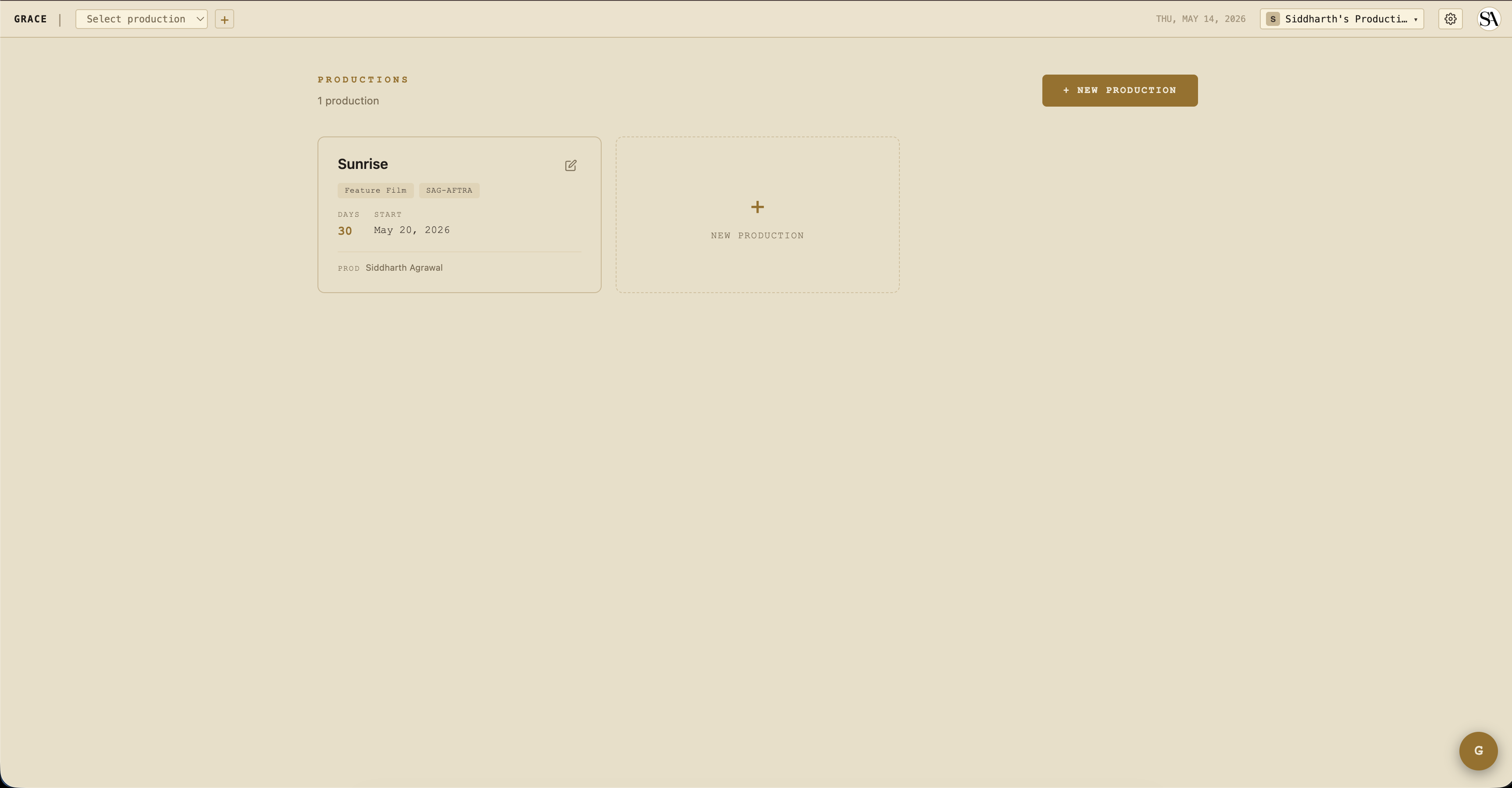
From the dashboard home (/dashboard), click + New production.
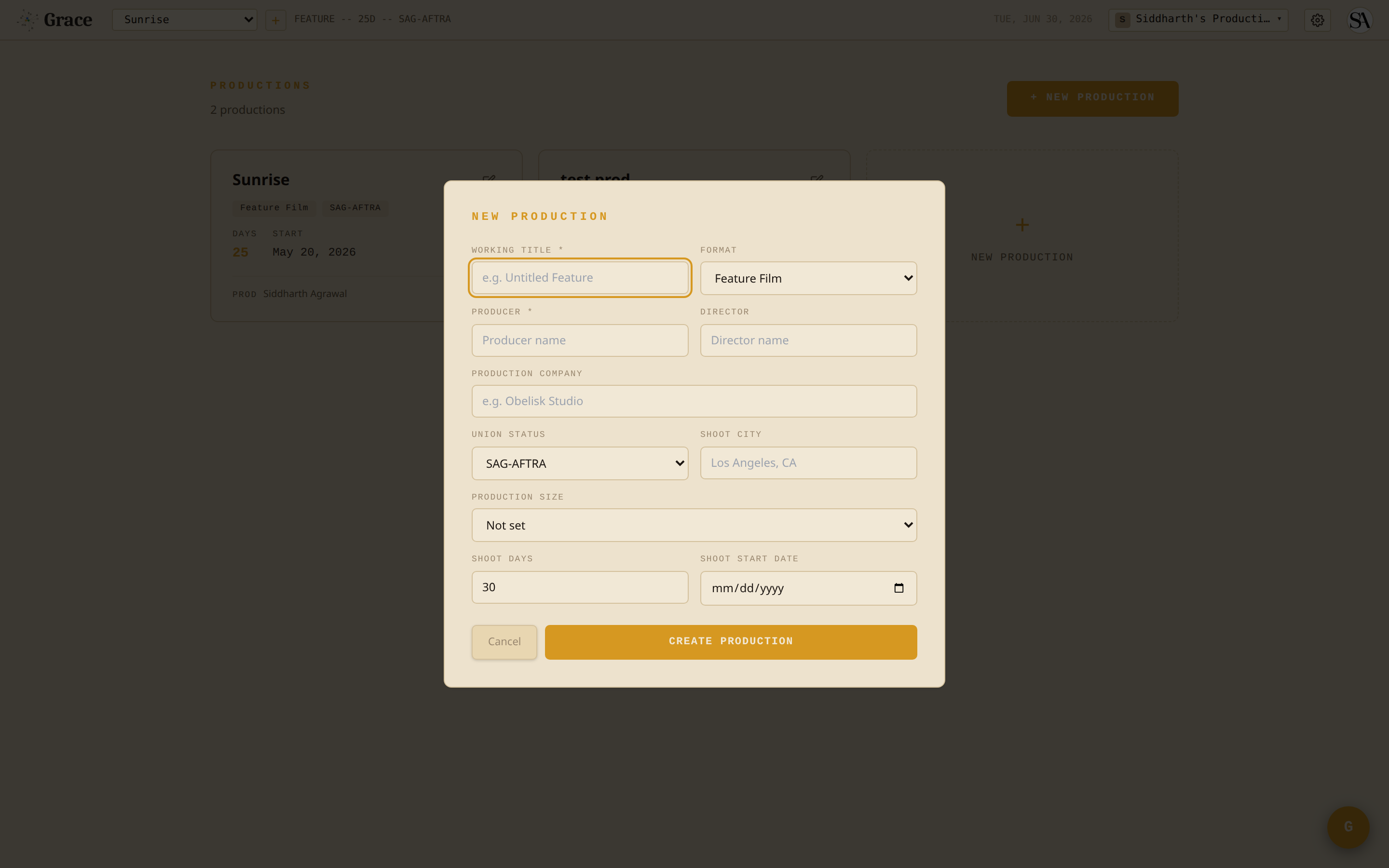
The New Production modal collects:
- Working title (required) - what you'll call the production internally. Can be different from the final film title. Creation fails without it.
- Format - Feature Film / Short Film / TV Series / Mini-Series / Pilot / Commercial / Documentary / Music Video.
- Producer (required) - the producer's name. Creation fails without it.
- Director - the director's name.
- Production company - the company that shows on call sheets. Defaults to the org name; you can override it per-production.
- Union status - SAG-AFTRA / IATSE / Non-Union / Mixed / TBD. Drives the compliance profile (turnaround, meal, OT thresholds).
- Shoot city - where you're shooting, e.g. "Los Angeles, CA".
- Production size - Not set / Student Film / Micro-Budget (< $50k) / SAG Ultra Low Budget (< $300k) / SAG Low Budget (< $800k) / SAG Modified Low Budget (< $2.6M) / SAG Basic / Theatrical / Mid-Budget Studio / Major Studio. Surfaces SAG-specific compliance variants.
- Shoot days - total scheduled days. Determines the schedule's day count + DOOD width.
- Shoot start date - calendar date of day 1. Subsequent days default to the next calendar day, including weekends. If your production has dark days (e.g., shooting Mon-Fri only), set the date for any affected day from the Schedule page or the Call Sheet - those edits sync everywhere.
You can leave the script + budget + schedule empty for now. They'll get filled in next.
3. Invite the team
From the production dashboard, navigate to Settings → Access.
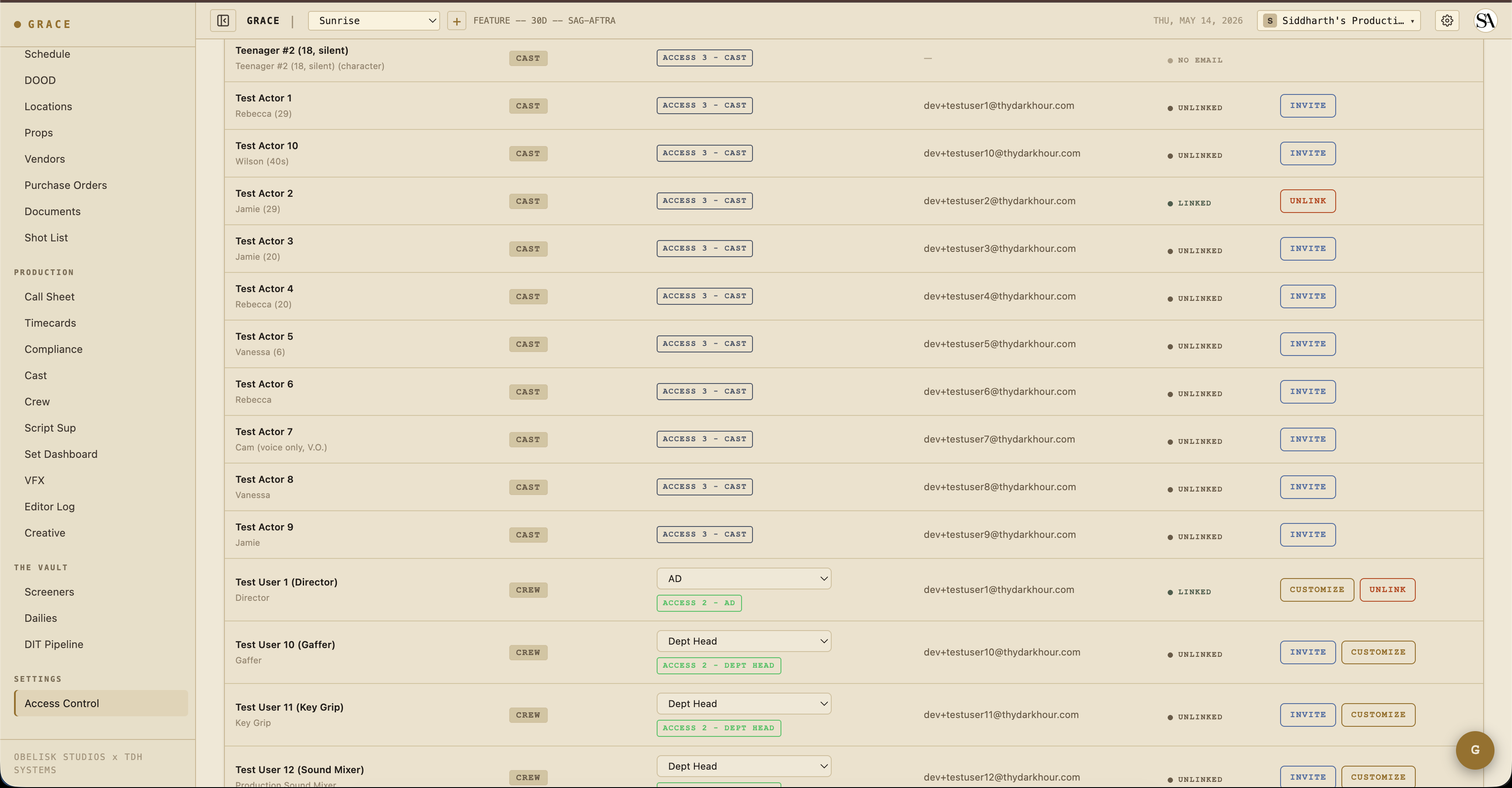
Inviting someone is a two-step:
- Create a crew (or cast) row with their name, email, and intended Grace role (Producer, AD, DP, Script Sup, etc.). The role determines what they'll see when they accept.
- Click INVITE. Grace sends them an email from
[email protected]with a magic link that's good for 14 days. Clicking the link takes them to the invite landing page, where they sign up (or sign in) and accept.
On accept:
- Their crew/cast row binds to their account.
- They're granted access to this production with the role + any overrides you set.
- They're added to your organization, so they show up in the org switcher.
- Their access is immediate.
If their email already matches an existing user in your org, the invite is automatically accepted (re-linked) without sending email - the crew row binds immediately and they get an in-app banner.
Who to invite first
Recommended order:
- UPM - they take over budget + schedule.
- 1st AD - they take over call sheets + set dashboard.
- Director + DP - pre-pro planning starts.
- Department heads + crew - usually a week before shoot.
- Cast - closer to their first day, sometimes via their agent's email then re-routed.
During the free beta, invites are unlimited and free - there are no seat limits and nothing to buy. Grace still organizes access by tier (T1 producers/UPM, T2 heads of department, T3 crew/cast), and paid seat-packs may return when the beta ends, but no seat quotas or charges apply today.
4. Self-join as Producer (owner only)
When you create a production as the owner, you have read-only access by default - you'll see a gold banner across the top marking the production as READ-ONLY (OWNER PASS). To get full T1 producer access on a production, you need to self-join it: Settings → Access, then in the OWNER - YOUR SEATS panel click JOIN AS PRODUCER (only visible if you're the owner and not yet on this production's roster). The same JOIN AS PRODUCER action is offered right on the read-only banner.
To step back off a production, use LEAVE in that same panel.
The self-join mechanic exists so that, once paid plans return after the beta, the producers actively working on each production are counted honestly across multi-show orgs. During the beta it's free and unlimited - joining or leaving never costs a seat.
What happens next
With the production created and the team invited, you're ready for the next workflow:
- Script → Breakdown - upload your screenplay, review the AI parse.
Or skip ahead if you don't have a script yet and want to set up budget / schedule manually:
- Pre-production - schedule, budget, locations, props, shot list.