VFX flagging + turnover
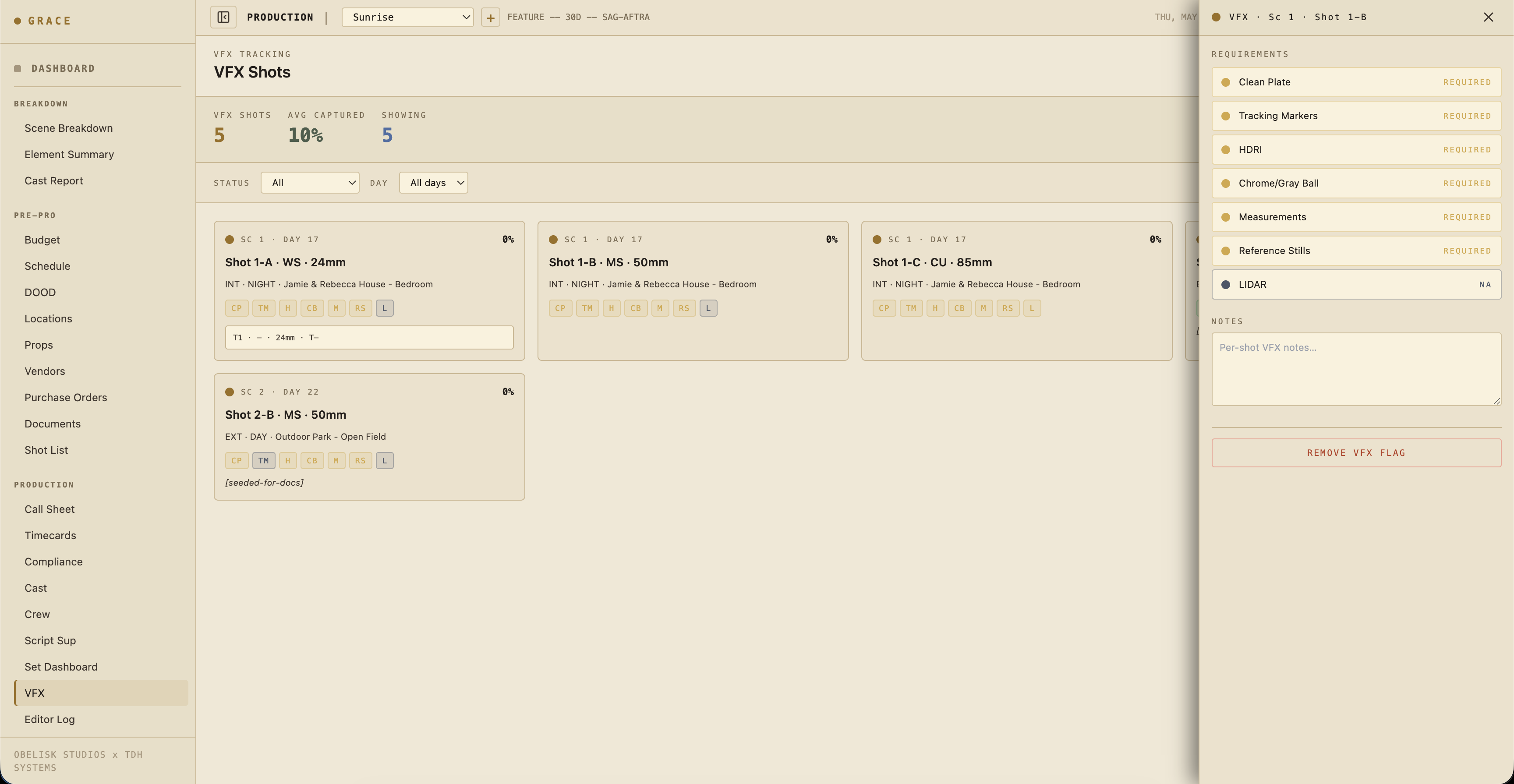
/dashboard/production/vfx. The VFX tracking view: every shot already flagged as VFX, its capture readiness, and the turnover package you hand the vendor at wrap.
Shots get flagged on the shot list, not here. This dashboard is where you track and export shots that are already flagged. First time you land on the page, Grace runs a short spotlight walkthrough; you can replay it any time from the gear menu's "Show guide."
How VFX shots get flagged
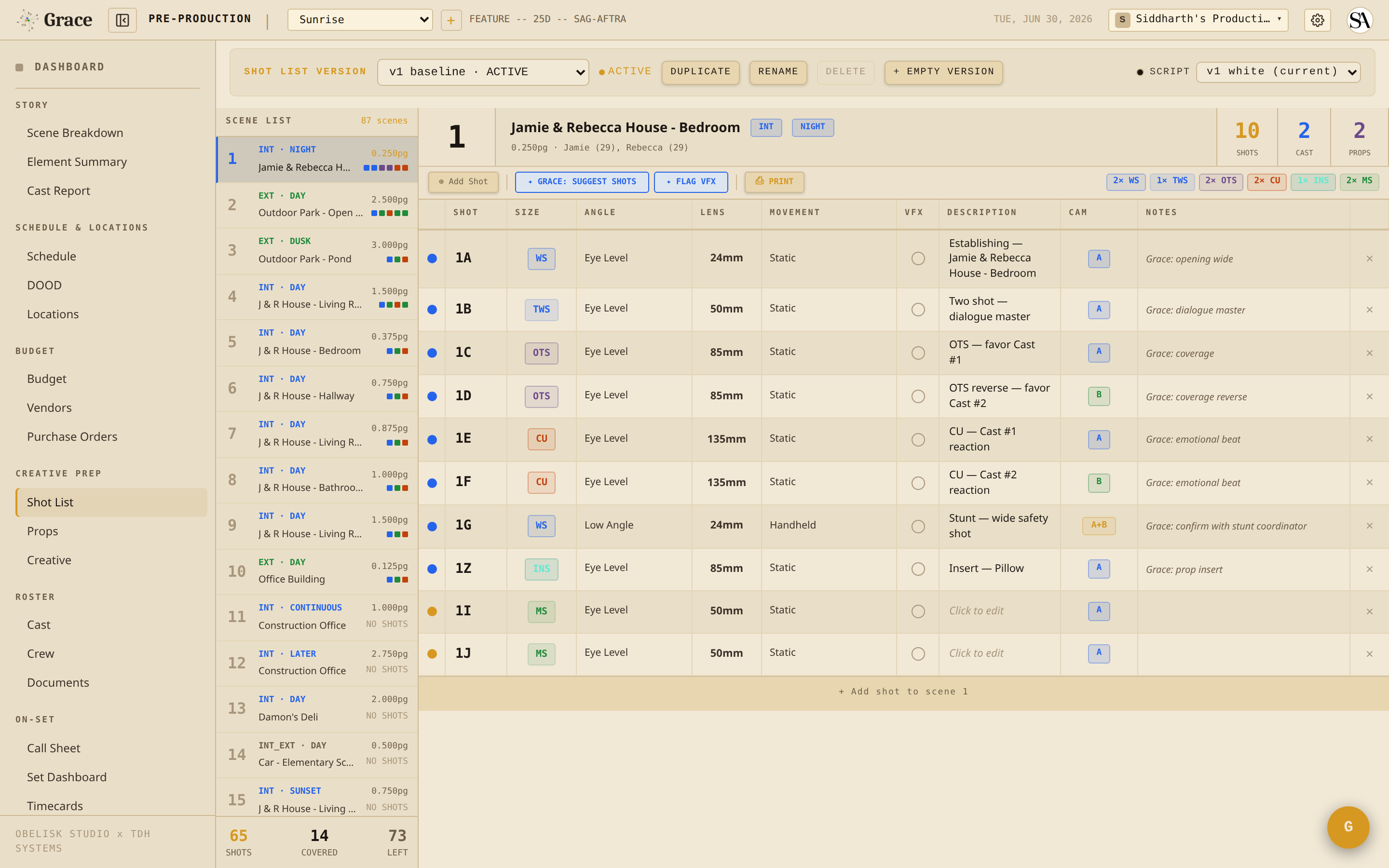
Flagging happens on the shot list (/dashboard/pre-pro/shot-list), not on this dashboard. Two ways:
- Manual flag - click the VFX cell on any shot row. Flagging a shot by hand marks it with a gold dot (a human decision).
- Grace AI suggestion - hit the "FLAG VFX" button in the shot-list toolbar. Grace runs a pass over the current shot list looking for visual descriptions that read like VFX work ("monster steps out of the closet", "muzzle flash", "green-screen plate") and flags the matches with a blue dot. Blue means Grace's guess; you confirm it or remove it.
Either way, once a shot is flagged it shows up on this dashboard. When nothing is flagged yet, the dashboard's empty state points you back to the shot list ("Open a shot list and click the VFX dot on any shot").
Requirements per shot
Every flagged shot has 7 capture requirements with status required / captured / na:
- Clean plate - empty-frame plate of the same setup without actors. For background replacement / set extensions.
- Tracking markers - visible markers (tape, ping-pong balls) for 3D track.
- HDRI - light-probe panorama at the actor's position. For relighting in CG.
- Chrome + gray ball - chrome ball (specular reflection sample) + gray ball (diffuse light sample). For lighting reference.
- Measurements - physical set measurements / scale references. Sometimes a tape measure shot, sometimes drone-photo + plate.
- Reference stills - photos of the set, costumes, props from multiple angles. Used in the VFX bid + during the comp.
- LIDAR - 3D scan of set geometry. Often N/A for small productions; common on big-budget.
Plus a free-text notes field for shot-specific quirks.
Status cycle
Each requirement cycles: required -> captured -> na -> required. Click the badge to advance. Per shot, the capture rate is captured / (captured + still-required); requirements marked na drop out of the math, so a shot that is all N/A shows a dash instead of a percentage.
Status colors
Borrowed from the dot system:
- 🔵 Blue - Grace suggested (this shot might be VFX). Visible, editable.
- 🟡 Gold - Human flagged or confirmed.
- 🟢 Captured - Requirement satisfied.
- ⚫ N/A - Doesn't apply (e.g., no LIDAR on a small indie).
The blue/gold dot describes the whole shot (who flagged it). Each requirement badge carries its own status: required (gold), captured (green), or na (grey).
The grid card
Each flagged shot is a card in the grid. On the card:
- Scene + day - scene number and the shoot day it is scheduled.
- Capture % - the per-shot capture rate, top right.
- Shot line - shot number, size, lens.
- Scene context - INT/EXT, time of day, location.
- Requirement badges - the 7 requirements as color-coded initials (CP, TM, HDRI, and so on) so you can read readiness at a glance.
- Circled-take strip - if the Script Sup circled a take on this shot, its camera report shows here: T#, camera body, lens, T-stop.
- Notes preview - the first couple lines of the shot notes, if any.
The flag detail panel
Tap a card to open its side panel. The panel has exactly three things:
- Requirements - the 7 status toggles. Click each to cycle it through
required->captured->na. - Notes - a free-text box for shot-specific quirks, saved as you edit.
- REMOVE VFX FLAG - unflags the shot (deletes the VFX row). It drops off the dashboard.
That is all the panel holds. It does not show take data, dailies clips, or scene context; those live on the grid card (above) and in the turnover PDF (below).
Daily workflow on set
For each flagged shot the day it shoots:
- Confirm the scope - does the requirements list match what the VFX team needs? Update if the team's scope changed since pre-pro.
- Capture the references - clean plate, HDRI, chrome/gray ball, etc. as the AD calls for them between takes.
- Tick captured as each is done. Don't wait until end-of-day to update - it's easy to lose track.
- Notes - write down anything that'll save the VFX team time: "actor's hand crosses screen-right at 4:12", "fan blowing curtain SR, possible mark", "muzzle flash captured frame 47".
VFX turnover at wrap
At end of show, generate the VFX Turnover PDF from the "TURNOVER PDF" button (top right of the header). One block per flagged shot:
- Scene number + scene context (INT/EXT, time, location)
- Shot number + description + assigned camera setup
- Requirement / status table (all 7, showing captured / required / na)
- Camera data table - every logged take with STATUS, BODY, LENS, T-STOP, FILTER, FOCUS, MEDIA; the circled take is highlighted
- Per-shot VFX notes
This PDF goes to the VFX vendor (or in-house VFX team) along with the dailies. The dailies clips themselves stream from the Vault.
One honesty note on the MEDIA column: it reads from the legacy manual DIT file manifest (the "Add Files" text-paste on a media card), not from batch-delivered dailies. Unless a DIT typed filenames in by hand, MEDIA is usually blank on the turnover, and the VFX team pulls source from the delivered dailies package instead.
CSV export
Next to the PDF button, the "CSV" download dumps every VFX shot currently showing (after your filters) as a spreadsheet: scene, shot, all 7 requirement statuses, the circled-take camera data, and notes. Useful when the vendor wants the shot list in Excel or Google Sheets rather than a PDF.
The dashboard at a glance
The header summary shows three numbers:
- VFX SHOTS - total flagged shots on the production.
- AVG CAPTURED - the average per-shot capture rate (%), across every flagged shot.
- SHOWING - how many shots match your current filters.
Two dropdown filters narrow the grid:
- STATUS - All / Has required / Fully captured.
- DAY - All days, or a single shoot day.
There is no progress bar; capture readiness is the per-card percentage plus the AVG CAPTURED stat.
What you can't do here
- Reviewing/approving the actual VFX shots after delivery isn't in Grace - that's a separate pipeline (Frame.io, ftrack, ShotGrid).
- Lens distortion grid capture has a dedicated workflow in some productions but isn't templated in Grace yet.
- On-set previs viewer (loading a PV sequence inline with the shot) is on the roadmap.
Next
- Editor log - circled takes show up here too, separately from the VFX queue.