Call sheets
The 1st AD's daily cycle. Every shoot day starts the night before - the AD assembles tomorrow's call sheet, approves it, sends to crew + cast. Grace pre-fills everything it can from the schedule + crew + cast + locations data. You spot-check, override what you need to, approve.
The first time you open this page, Grace runs a short spotlight walkthrough of the build/approve/send flow. Replay it any time from the gear menu's "Show guide".
1. Open the day
On-Set → Call Sheet. The day-stepper at the top lets you navigate to the day you're building. Day 1 is the first shoot day from the production's shootStartDate.
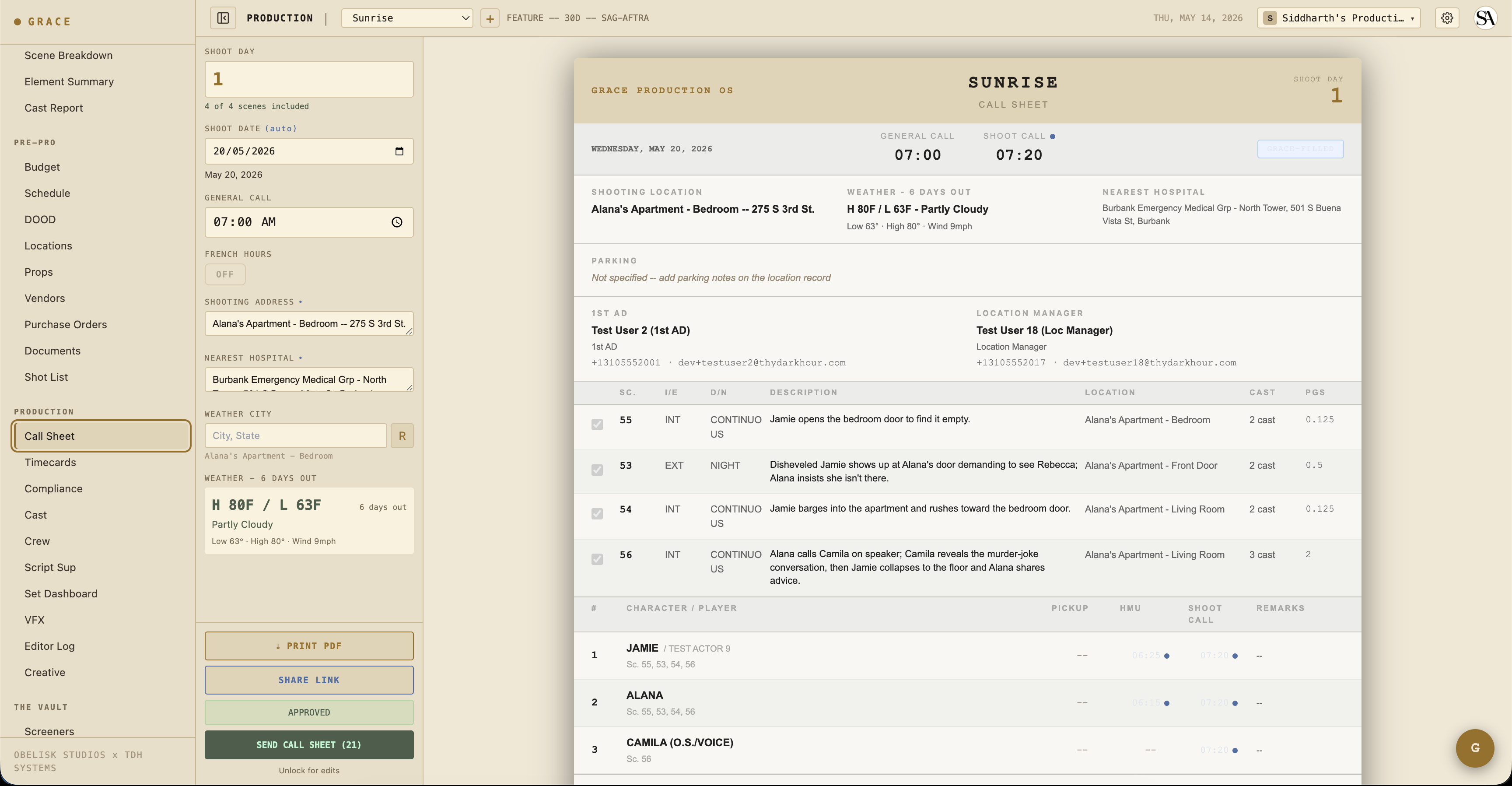
If a call sheet doesn't exist yet for the day, Grace creates one on first open - uses today's active schedule version to bind scenes + crew + a default 07:00 general call. The created row is in draft status.
Archival invariant: once approved, a call sheet stays bound to the schedule version that was active at the time of approval - forever. You can't delete that schedule version while approved sheets reference it. This is what makes call sheet history honest across schedule revisions.
2. Set the general call
The general call time (default 07:00) is when crew arrives. Per-row crew call-time overrides happen separately - Grace stores these in call_sheet_crew.callTimeOverride. For example, the DP/1st AC arrive at 06:00 for pre-light → override their row to 06:00. Cast in HMU chain arrive at 05:30 → override their cast rows accordingly.
Stale-column note: crew.callTime exists in the schema but is no longer read by any flow. Don't try to use it as the source of truth - it's the call sheet crew override that counts.
3. Confirm scenes and crew
Below the header, the call sheet shows:
- Scenes for the day - auto-populated from schedule strips. Each row has an
includedtoggle (uncheck if a scene's been postponed). Reorder via drag if you want to shoot order to differ from the schedule order. - Crew for the day - auto-populated from crew whose
workDaysinclude this shoot day. Each row hasincluded+callTimeOverride. - Cast - same logic but for
cast.workDays.
If the breakdown changes or the schedule changes after you've built the call sheet, you can hit REBUILD to re-sync scenes + crew from the current data. REBUILD is blocked once a sheet is approved (preserves the as-sent record).
4. Add department notes + movement orders
Department notes are free-form, per-department. Camera, G&E, Sound, Wardrobe, HMU, Art, Locations, Production. Notes flow into the dept-specific section of the printed PDF + the email.
Movement orders track how crew/equipment moves through the day. Grace auto-generates these from location changes across scene strips (Scene 1 → Scene 2 in a different location = a move). You can edit, mark them manual (won't auto-update on rebuild), or add custom orders.
5. Compliance gates on approve
Before you can approve, Grace runs server-side compliance checks:
- Turnaround vs previous day's wrap - if previous day wrap → current day call is less than the union profile's turnaround minimum (IATSE 12h, DGA 11h, SAG 12h, etc.), Grace flags it. You can still approve - Grace will auto-generate a Forced Call memo PDF and attach it to documents.
- Minor hours - for any minor cast on call today, Grace checks that their day length (earliest call → projected wrap) doesn't exceed the profile's minor cap. If it does, approve returns 422 with a list of violations. You can re-submit with
acknowledgeMinorViolations: trueto override; the override is logged with your user ID. - French hours - if checked, meal penalty checks are suppressed for the day. Grace records this on the sheet.
6. Approve and send
Click APPROVE. The sheet locks (now in approved status). The schedule version it references becomes archivally bound - you can't delete it.
Click SEND. Grace generates a personalized HTML email per recipient via buildEmailHtml. Each crew/cast member gets a unique magic-link URL (/s/<token>) to view the day's sheet - no sign-in required. Token TTL: 48 hours.
The email comes from [email protected] with From: Grace Production OS. Replies route via resolveReplyTo to the 1st AD first, then the original sender, then the org owner, then [email protected].
7. Crew + cast rosters
Roster → Crew and Roster → Cast are where the actual roster lives.
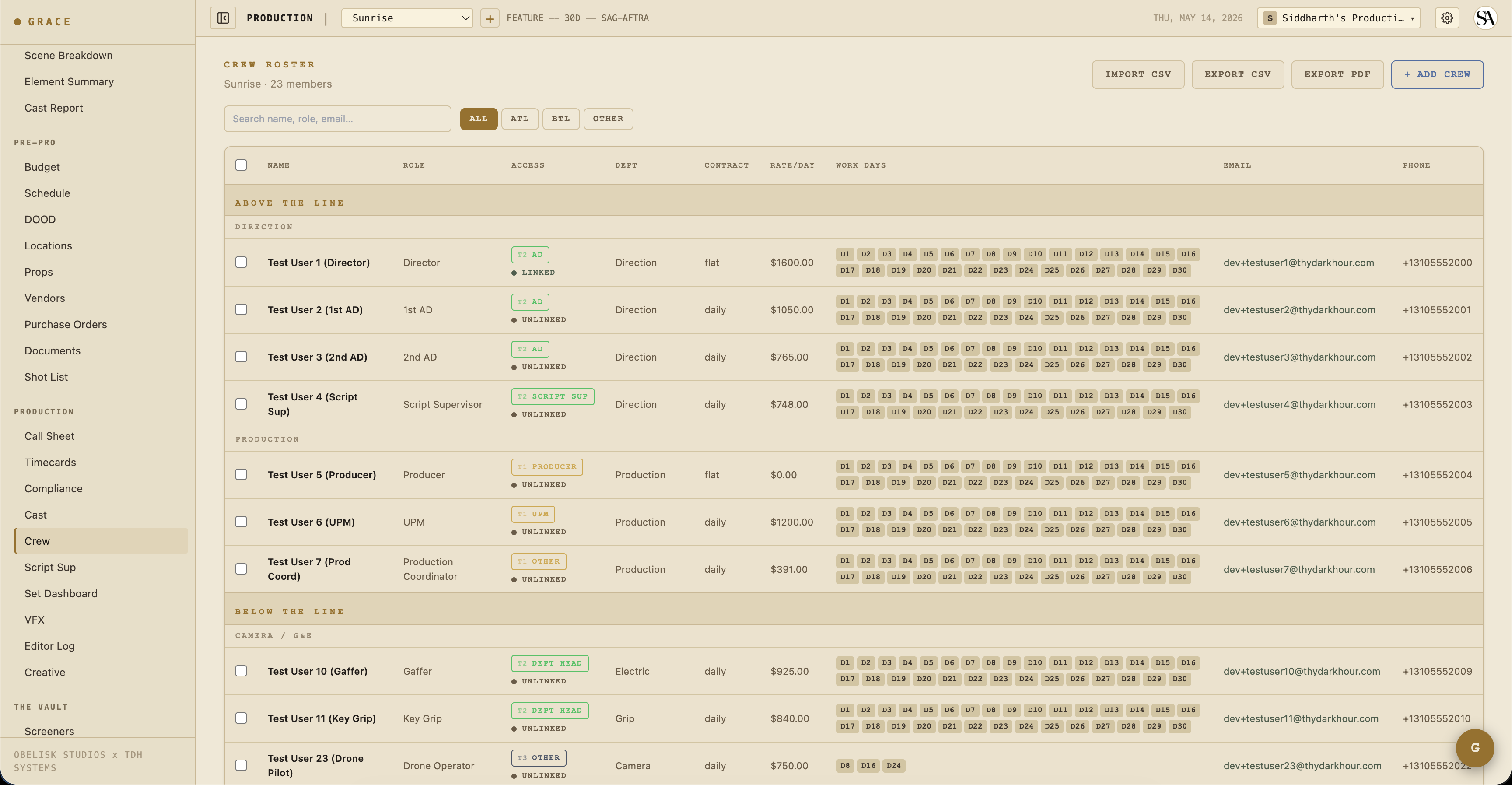
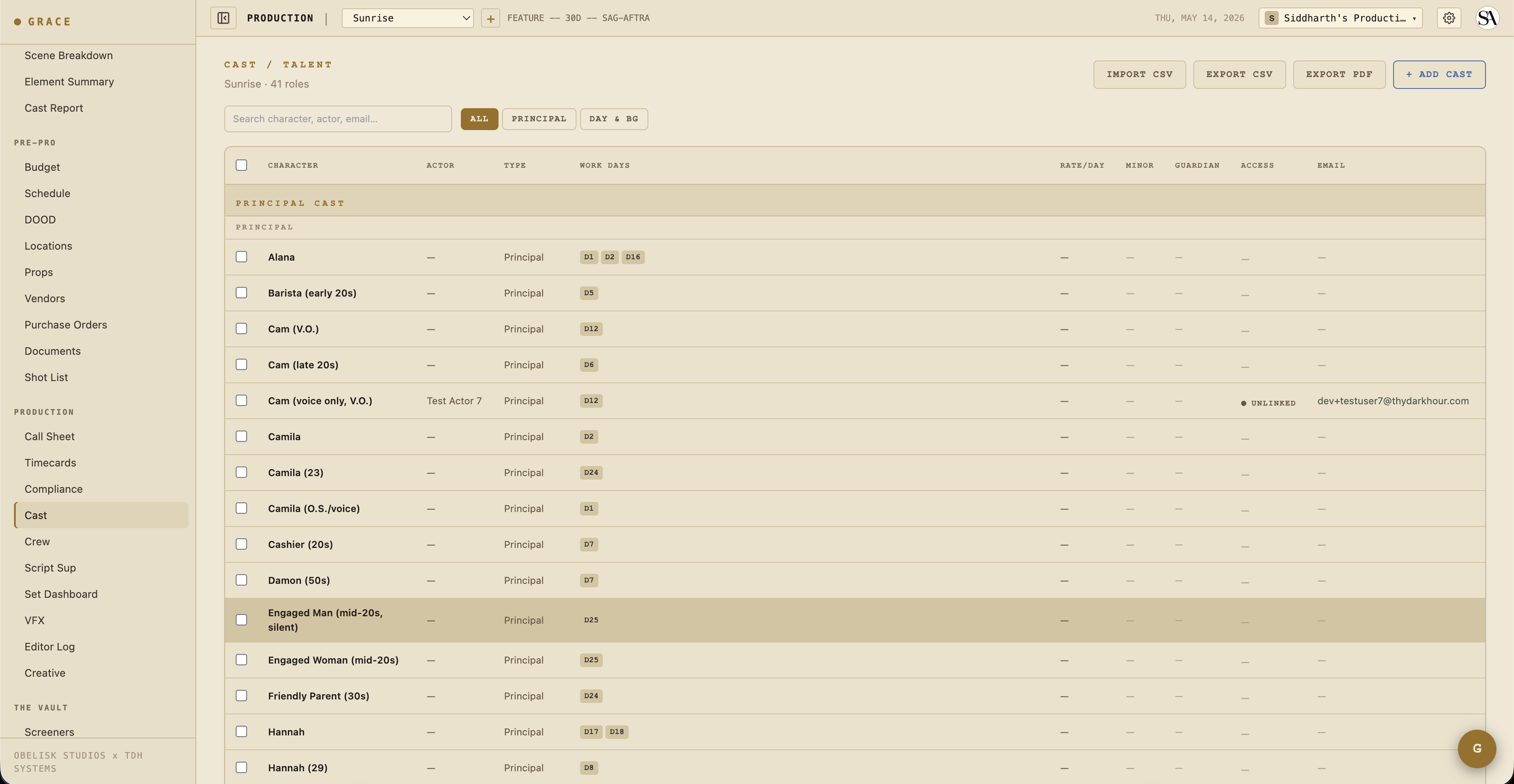
The rosters cluster by ATL (Above-The-Line: production, direction, executive), BTL (Below-The-Line: camera, sound, grip, G&E, art, etc.), and OTHER. Sticky headers as you scroll.
You can export the roster as a PDF (EXPORT PDF, via roster-pdf.ts) or as CSV (EXPORT CSV), and pull people in from a spreadsheet with IMPORT CSV - useful for printing for set or sharing with insurance.
Each row carries:
- Work days - list of shoot days they're scheduled. Drives DOOD + auto-include on call sheets.
- Email + phone - used for call sheet sends + emergency contacts.
- Access template - auto-filled from the role (e.g. direction, production, camera, sound, support). It's a free-text field, not a fixed enum. Only
directionandproductionmark a row as ATL, which hides that person's phone as "(contact via production)" on copies sent to BTL recipients. - Deal memo document - generate a standard deal memo (or NDA, cast talent release) straight from the roster row, or upload one you already have. Send it for signature in-app: the SignatureComposer lets you drag-drop signature / date / name / initials / text fields per recipient, and it e-signs through Documenso. Grace never signs for you. Once a deal memo is signed and executed, the roster row (and its budget person-line) flips GREEN.
- Grace role + access overrides - what they see in the app.
When things go sideways
- Crew member can't get the email - check the email logs in the send response (delivery status per recipient).
- Email link expired - the magic-link tokens are 48hr. Re-send the call sheet to issue new tokens.
- Recipient wants to print the sheet - the share page has a print button that opens a print-optimized white-background version. Or attach the PDF directly via the call sheet's send settings.
- Approve is blocked by minor hours - either restructure the day to come under the cap, or acknowledge the violation when you re-submit.
Next
- Set Dashboard - the live shoot-day version of this sheet. Same data, much more clock-work.
- Compliance - the 8 doc types that automate around your call sheet flow.
- Timecards - capture actuals during/after the day.