Script supervisor workflow
/dashboard/production/script-supervisor. Script Sup's dedicated work surface for capturing continuity, takes, continuity photos, and director picks. The notes + takes you log here flow downstream to the editor log and the daily report PDFs.
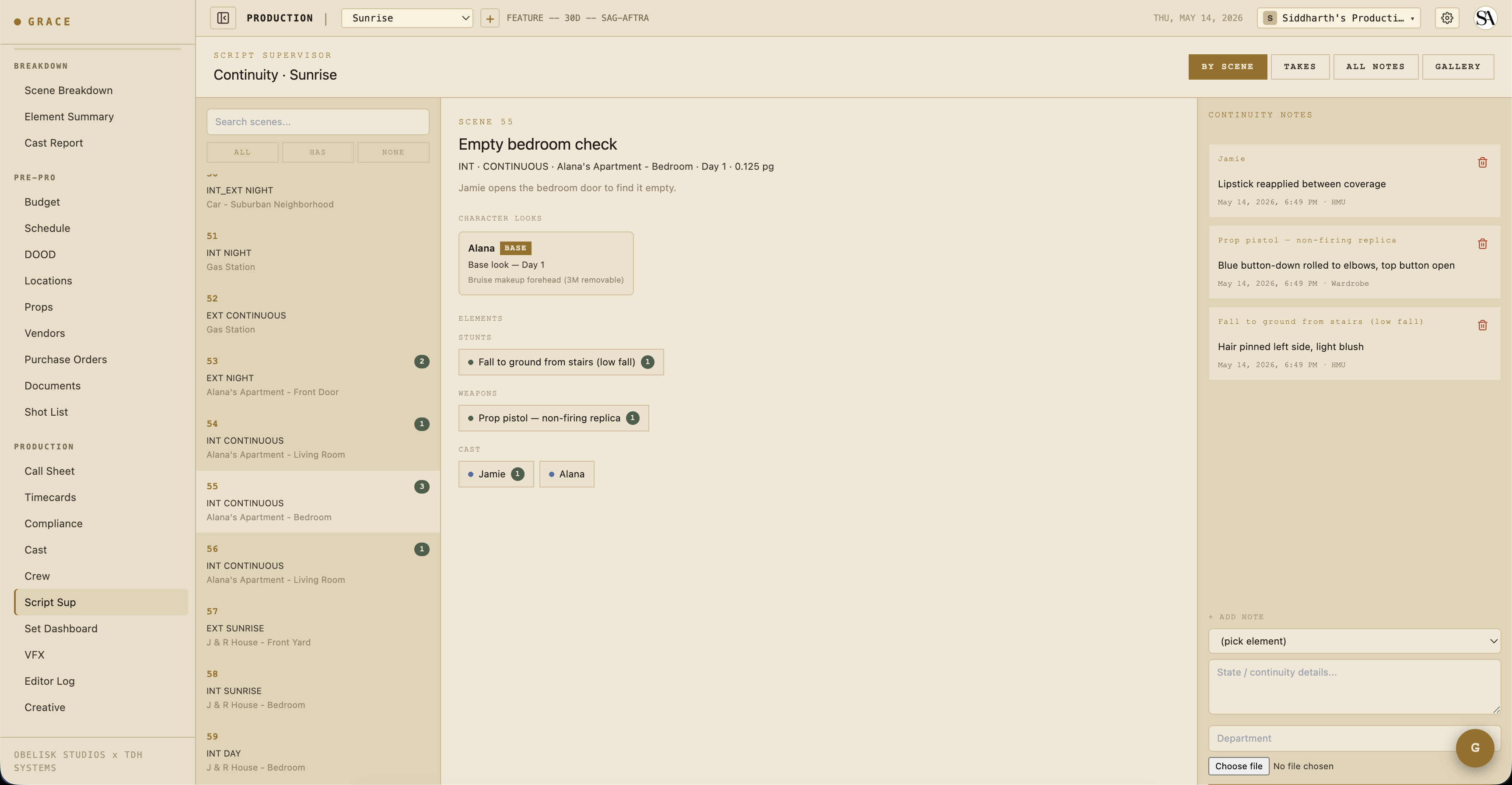
Four views
The page opens on four view tabs across the top right. They swap the whole work surface, not just a pane:
- BY SCENE - the default. A scenes list, the selected scene's breakdown (elements, character looks, creative refs), and the continuity-notes rail for that scene.
- TAKES - day-scoped take logging. A scenes list for the shoot day, the shots under the selected scene with their takes, and a CAMERA DATA panel for the selected take.
- ALL NOTES - a cross-scene table of every continuity note (date, scene, element, department, state, photo), with a department filter and text search. This is where you flip back through an element's whole history.
- GALLERY - a photo wall of every continuity photo captured across the production.
On desktop each tab lays out as columns. On mobile you step through the columns with the mobile pane controls (list, detail, notes/data).
BY SCENE
- Scenes list (left) - all scenes, not just today's. A search box plus an ALL / HAS / NONE filter narrows to scenes that do or do not have continuity notes. Each row carries a note-count badge.
- Scene detail (middle) - the scene's ELEMENTS grouped by category, a CHARACTER LOOKS strip (per-character look, base look, reference photo), and, when the director has tagged any, a CREATIVE REFS strip of assets for the scene. You can append a continuity element on the fly with + NEW ELEMENT without leaving for the breakdown page.
- Continuity notes (right) - the notes for the selected scene, plus the + ADD NOTE form.
Trust dots on elements
Every element in the grid carries the standard trust dot:
- 🔵 Blue - Grace suggested it from the script parse, not yet verified.
- 🟡 Gold - a human entered or edited it directly.
- 🟢 Green - verified.
Each element card also shows a running note-count badge, the total number of continuity notes attached to that element across the whole production. To read the full history for an element across scenes, use the ALL NOTES tab.
Logging a take
On the TAKES tab, pick the shoot day with the day prev/next control, select a scene, then work its shots:
- Tap + TAKE on the shot row. A new take is created (default status HOLD) and its number auto-increments per shot.
- Tap the take's status badge to cycle it: HOLD then CIRCLE then NG then FALSE START and back to HOLD.
- CIRCLE (the keeper) - green.
- HOLD - might use. Default for fresh coverage.
- NG - no good. The director can override later via Editor Log picks.
- FALSE START - never rolled / aborted.
- Select the take to open the CAMERA DATA panel and capture the camera report fields:
- Camera - A / B / A+B / HH.
- Lens - focal length (pick from the list or type a custom value).
- T-stop - exposure.
- Filter - ND / pol / diff / etc.
- Focus distance - feet / meters.
- Camera body - model (ALEXA Mini LF, RED Komodo, etc.).
- Source media - link the take to an uploaded dailies clip (grouped by DIT card). This is what connects the take to real media downstream in the editor log. If nothing is offered, no dailies have been uploaded for that day yet on DIT Pipeline.
- Notes - what was different. Whose line was muffed, whose timing was off, what the prop did that it shouldn't.
Take numbering is locked (a UNIQUE constraint on shot + take number), so numbers are stable and never re-used. You can also append a shot on the fly with + ADD SHOT without leaving for the shot-list page.
Continuity notes
On the BY SCENE tab, tap an element in the scene grid. The continuity rail filters to that element for the selected scene. Use + ADD NOTE to log a state note:
- HMU - "Hair pinned left, light blush"
- Wardrobe - "Blue button-down rolled to elbow, top button open"
- Set Dec - "Coffee mug 3/4 full, handle camera right"
- Camera - "Practical lamp ON, lampshade tilted 10 degrees clockwise"
Each note carries:
- Element - what it's about (picked from the scene's elements).
- Scene - where it was captured.
- Shots - an optional multi-select of the shots the note applies to (default empty = the whole scene).
- State - your freeform text.
- Department - a free-text field (HMU, Wardrobe, Props, Set Dec, Camera, Script, or anything you type).
- Photo - an optional image. On mobile the file picker opens the camera directly.
- Captured by + timestamp - provenance, stamped automatically.
The per-scene rail shows the notes for the scene you're on. The element's note-count badge counts every note across the production; the ALL NOTES tab is where you search and filter that full history by department or text.
Continuity photos and QUICK CAPTURE
Notes can carry an attached photo, and there is a floating QUICK CAPTURE button (camera-lens icon) for the fast path: snap a frame, tag it to the current scene plus an element and a department (HMU, Wardrobe, Props, Set Dec, Camera, Script), and it saves as a photo note in one step. Every photo you capture also lands on the GALLERY tab for a wall view across the whole production.
Director picks
After scene coverage is done, the director may rank specific takes as "selects." From the Set Dashboard or Editor Log:
- Find the shot.
- From the shot's take list, tap a circled take.
- Mark it as the primary pick (orderIndex 0) or rank it (orderIndex 1, 2, ... for secondary picks).
Picks land in the shot_selects table and flow through to the editor log and the EDL / FCPXML / CSV exports.
Reports
On the TAKES tab the REPORTS menu exports three day-scoped PDFs straight from your logged data:
- Camera Report - the daily camera report from your take + camera data.
- Script Sup Report - a continuity-focused report.
- Daily Production Report - the DPR for the day.
Creative refs
/dashboard/production/creative is the Creative Repository, where reference assets are tagged by scene.
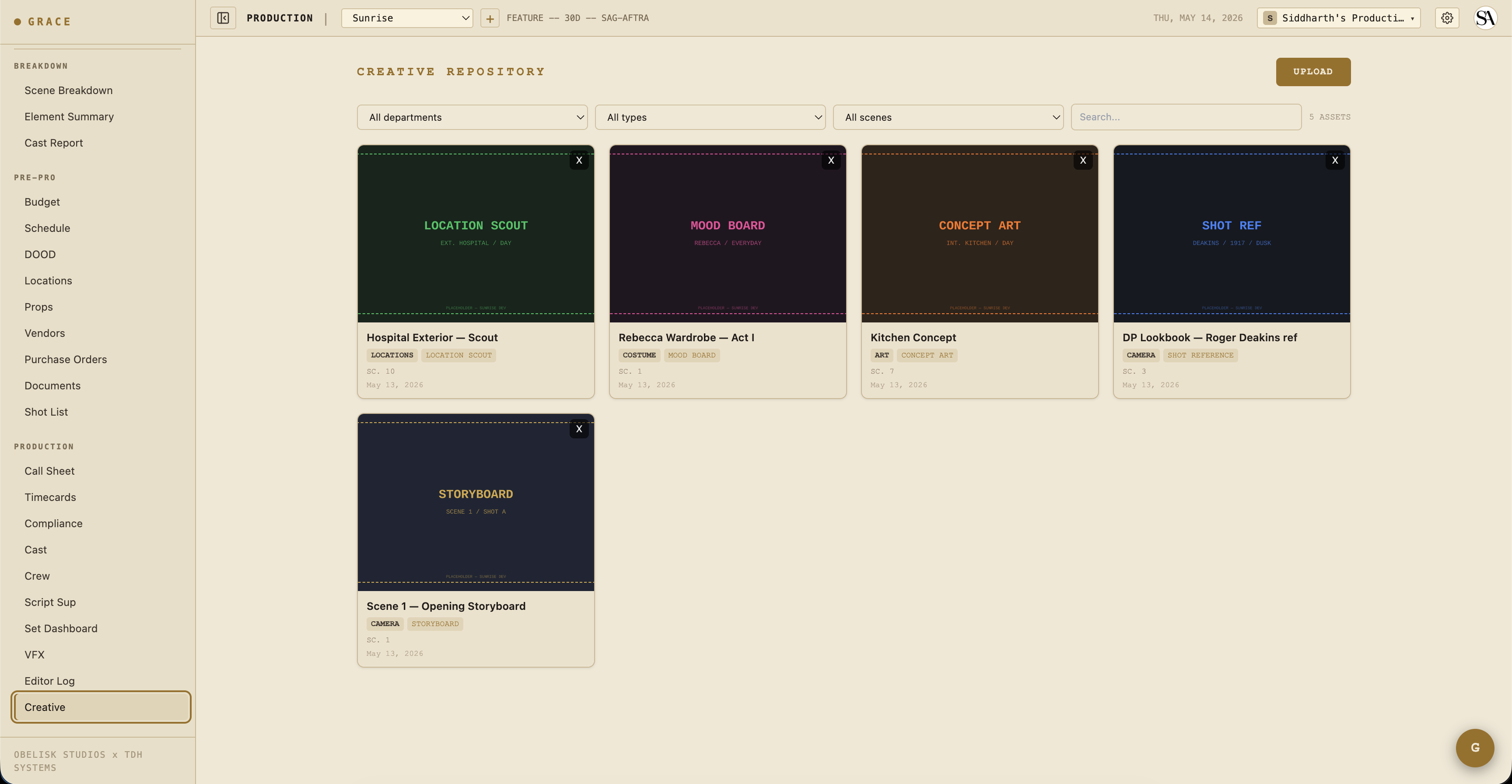
Any asset tagged to the scene you have selected surfaces in the CREATIVE REFS strip inside the BY SCENE detail pane, mood boards, previs, and frame references from the director, without leaving the script-sup surface.
Mobile
Script Sup uses a mobilePane state (list / detail / notes / data) to swap which column is visible on a phone. Switching the page's own view tab (BY SCENE / TAKES / ALL NOTES / GALLERY) resets mobilePane to list so you always start from a known state.
Learn it in the app
The script-supervisor page ships an in-app spotlight tour that walks the scene list, the notes form, the photo capture, the takes panel, source media, and the reports menu. It auto-launches on your first visit and can be replayed any time from the gear menu's "Show guide." This written guide is the companion reference.
What flows downstream
Everything you log here drives:
- Editor log - Coverage to Editor Log is the circled-takes view by default, with an option to show all takes. Takes linked to a dailies clip via SOURCE MEDIA carry that media through.
- Camera report PDF - the daily camera report from your take data.
- Script supervisor report PDF - the continuity-focused report.
- Daily Production Report PDF - the day's DPR.
- Editor log exports - EDL / FCPXML / CSV / PDF - see Editor log.
Next
- Editor log - where your circled takes + picks show up.
- VFX flagging + turnover - if today had VFX shots, the requirements should be tracked here too.